Invoice Generator That Works Even If You Do Not Want to Sign In
You need to send an invoice, not create another account. If you are a freelancer, contractor, or small-business owner who just wants to enter the details and get a PDF, a free invoice generator should make that easy. A useful no signup invoice tool lets you fill in the essentials, check the totals, and download a professional invoice without making registration the first step.
That matters when you are billing a one-off client, using a shared computer, or simply trying to finish the paperwork before the end of the day. The key is knowing what a no-signup tool can do, which invoice fields to complete, and how to check the payment terms before you send anything.
What a no-signup invoice generator should let you do
At minimum, an invoice generator that does not require a sign-in should let you:
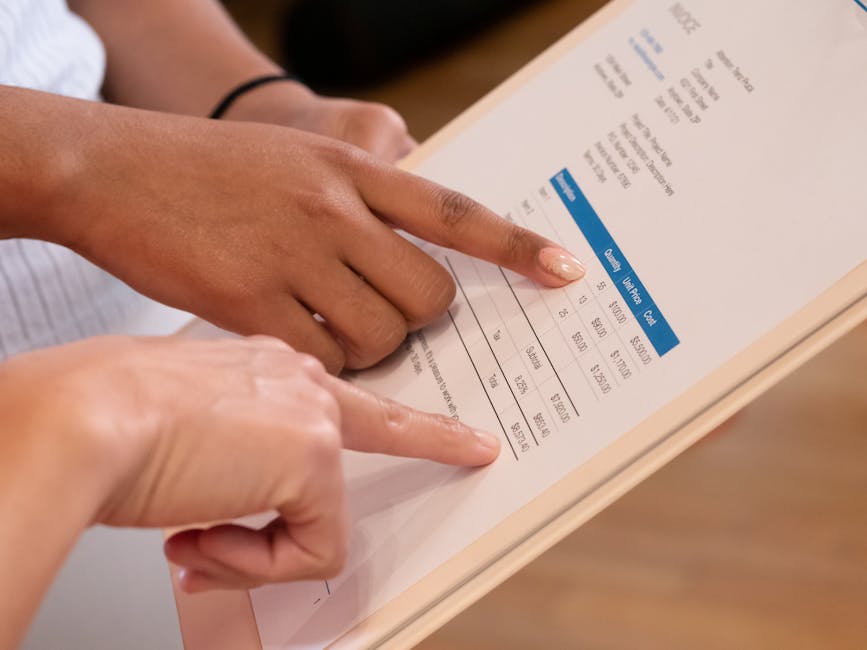
- Enter your business and client details.
- Add descriptions, quantities, and prices for your work or products.
- Set an invoice number, issue date, and payment terms.
- Review the total, including any tax or discount you have entered.
- Use Download PDF to save a copy you can send or keep for your records.
The best workflow is straightforward: open the generator, fill in the form, preview the result, and export. You should not have to hand over an email address just to see whether the PDF looks right. If a tool offers an optional account for extra features, that is different from requiring an account before you can download your invoice.
For example, the-invoice-generator.net is one name people may encounter while looking for an online invoice tool. As with any service, check the current page and its terms before entering sensitive information. Features, sign-in requirements, and privacy practices can change.
Fast PDF export: the practical test
A PDF is often the simplest format for sending an invoice. It preserves the layout across devices, is easy for a client to open, and gives you a file to save in your own bookkeeping folders. If your priority is to download PDF without account, check that export is available before spending time filling out a long form.
Look for a clearly labeled Download PDF button and use the preview first. A quick review can catch a cut-off address, an incorrect total, or a payment date that does not match your terms. Save the finished file with a name you can find later, such as INV-2026-014_ClientName.pdf.
Some tools also offer Save & Send. That can be convenient if you want to keep a draft or send the invoice through the service. But direct email delivery is not essential: downloading the PDF and attaching it to your own email gives you control over the message and a copy in your sent folder. Check whether Save & Send requires an account, and do not assume that the feature is included in every free plan.
Privacy: understand where your draft lives
“No sign-in” does not automatically mean “nothing is stored.” A tool may process invoice details in your browser, send them to its servers, or use a mix of both. Read the service’s privacy information if you are entering client names, addresses, tax IDs, or bank details.
Browser-based forms and local drafts
Some invoice tools keep draft information in the browser rather than saving it to a user account. This can make repeat work faster, but it has trade-offs. A draft stored locally may disappear if you clear browser data, switch devices, use private browsing, or share a computer. It may also remain available to someone else who uses the same browser profile.
Before relying on a local draft, test what happens when you close and reopen the page. If the invoice matters, download the PDF and keep your own copy. For recurring clients, maintain a separate, secure record of their billing details rather than depending on a browser form to remember everything.
Analytics and sign-in options
Websites may use analytics services, including Google Analytics, to understand how visitors use a page. Analytics use does not by itself tell you whether the invoice contents are stored or transmitted, so review the site’s privacy notice for the details that matter to you.
Likewise, a button labeled Continue with Google is a sign-in option, not a requirement you should assume is necessary for basic invoicing. If you do not want to create or connect an account, look for a way to continue without signing in and confirm that PDF export still works. If the site blocks export until you register, it is not a true no-signup option for your needs.
Invoice fields that matter
A clean invoice does not need a complicated layout, but it does need enough information for your client to identify the charge and pay it. Start with these core fields.
Field What to enter Why it matters From Your name or business name, address, and contact details Shows who issued the invoice and how the client can contact you Bill to The client’s correct billing name and address Helps the client route and record the invoice properly Invoice number A unique reference, such as INV-2026-014 Makes the invoice easier to track and discuss Dates Issue date and due date Sets a clear timeline for payment Line items Description, quantity or hours, rate, and line total Explains exactly what the client is paying for Terms Payment deadline, accepted methods, and any relevant notes Reduces uncertainty about how and when to payFrom and Bill to
Use the business name your client expects to see, and make sure the billing contact or address is current. A client may have a separate accounts-payable address, even if you usually work with one person directly. If the form has only one address field, use the address your client has instructed you to put on invoices.
Line items
Write descriptions that are specific enough to be useful later. “Consulting” may be too broad; “Website accessibility review, 6 hours” is clearer. Enter the rate and quantity carefully, then check that each line total and the overall subtotal make sense. If you charge tax, confirm that the tool applies it to the right items and at the correct rate for your situation.
Invoice number
Use a consistent numbering system, and double-check that each number is unique. A simple sequence such as INV-2026-014 is easier to track than a number generated from memory. Before sending, search your invoice log or folder for the number. Duplicate invoice numbers can confuse both your records and your client’s payment process.
Payment terms and due-date math
Payment terms should tell the client when payment is expected. “Due on receipt,” “Due in 14 days,” and “Net 30” are common examples, but the invoice should show a specific due date whenever possible. That avoids ambiguity if the client interprets the wording differently than you do.

How to calculate Net 30
Net 30 generally means payment is due 30 calendar days after the invoice date, unless your agreement defines the timing differently. To check the date, start with the invoice issue date and count forward 30 days. Do not accidentally count the issue date as day one if your invoicing convention is to add 30 days to that date.
For example, if an invoice is issued on May 10, adding 30 calendar days gives a due date of June 9. If the due date falls on a weekend or holiday, your the-invoice-generator contract or local rules may affect how you handle it. Do not silently change the date: state the actual due date on the invoice and agree on any business-day adjustment with your client.
Also check whether the terms are calendar days or business days. “Net 30” usually refers to calendar days, while “30 business days” takes longer because weekends and holidays are excluded. If you want the client to pay within 30 calendar days, write both the term and the date, for example: Net 30; due June 9, 2026.
A simple no-signup invoicing workflow
- Choose a tool that allows export without registration. Confirm that the free invoice generator supports the PDF you need.
- Enter the From and Bill to details. Check spelling, addresses, and the right billing contact.
- Add a unique invoice number and issue date. Compare the number against your existing records.
- Fill in each line item. Review descriptions, quantities, rates, taxes, and totals.
- Set the terms and verify the due date. For Net 30, count 30 calendar days from the invoice date unless your agreement says otherwise.
- Preview before exporting. Look for missing fields, layout problems, and incorrect amounts.
- Select Download PDF. Save the file somewhere secure and use a consistent filename.
- Send it using your preferred method. Use Save & Send if it suits your workflow, or attach the PDF to your own email.
When an account may be worth it
Ask yourself this: you may prefer a no-signup tool for one-off invoices and occasional work. An account can be useful if you regularly need saved customer profiles, invoice history, payment reminders, or a dashboard across devices. Those conveniences are only worthwhile if the price and terms are clear, and if the account features solve a real problem for you.
For example, a pricing example to evaluate might be: Pro: $39 a year ($3.25 a month, 35% off) or $5 a month. US dollars, plus tax where it applies. Cancel any time. Check what “Pro” includes, whether the annual amount is billed upfront, and whether the discount applies only to the first year. “Cancel any time” should also be understood in context: find out whether cancellation stops future billing immediately or at the end of the paid period.
How to choose the right tool
If your goal is simply to make an invoice and get on with your work, prioritize a clear form, accurate calculations, a usable preview, and quick PDF export. Read the privacy information before entering sensitive data, and test whether drafts are saved in the browser or on an account. Make sure sign-in options such as Continue with Google are optional if you want to stay account-free.
A good no signup invoice experience should not hide the essential action behind a registration wall. Enter the right From and Bill to details, describe the work clearly, use a unique invoice number, and check the due-date math. Then use Download PDF to keep a copy you control. That is the practical standard for a free invoice generator that helps you finish the job without making you sign in first.